Omarchy, in your pocket
Omarchy themes and wallpapers, a searchable app list and widgets written in OWL. Edit widgets yourself or ask a coding agent.
SD LAUNCHER · 1.13.1
LauncherBuilt-in SUPER DESKTOPKeyboard mode
Your Android home, your PCs’ coding agents and an Omarchy-style desktop in one launcher. Keep live SUPER DESKTOP widgets on home, then use Super keys to tile Android apps and Linux terminals across workspaces.
Omarchy-inspired · Free and open source · Android 10+ · Built on Omalauncher
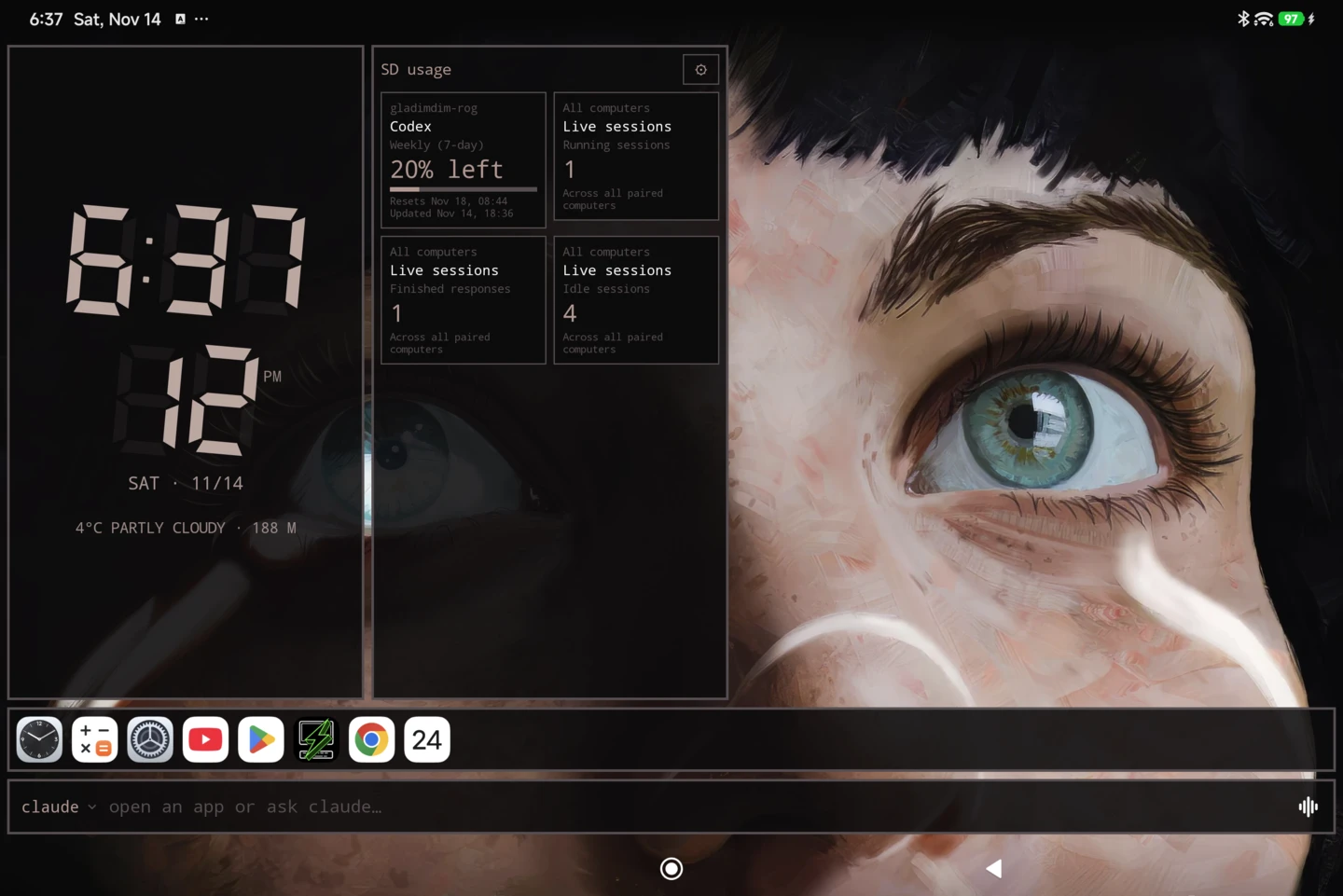 Built-in SUPER DESKTOP widgetsYour PCs’ agents, live terminals and usage — right on the home screen.See the widgets and how to set them up ↓
REAL SCREENS. REAL APPS.
Swipe to explore. Select a screenshot to open it full size.

Browse in Chrome while real Linux commands run in two terminal windows. Focus, swap and resize their tiles from the keyboard.

Keep Chrome, your PCs’ agent activity and YouTube visible together. The launcher tiles ordinary Android apps into the same workspace.

Lift YouTube out of the tiling layout while Chrome and SUPER DESKTOP stay underneath. Move it, resize it, or tile it again.

Pop Chrome out on workspace 3, then switch to workspace 1: the browser follows you while the Linux terminals stay on their own desktop.

Send SUPER DESKTOP to the scratchpad with Super+Alt+S. Super+S brings it over your current work and hides it again.

Make YouTube full screen, including the workspace bar’s space. Press the same shortcut to return to your tiled apps.

Super+Space, type the app’s name, Enter. Find SUPER DESKTOP without leaving the keyboard.

Switch workspaces, move windows, float, pop out or use the scratchpad. The built-in reference keeps the keys close.
Real captures from a Xiaomi Pad 7 Pro, in the Last Horizon theme. Chrome, SUPER DESKTOP, YouTube and Linux terminals running in SD Launcher.
SUPER DESKTOP IS BUILT IN
Your Omarchy-inspired home screen includes SUPER DESKTOP. Open a page of your PCs’ agents, pin one session as a terminal widget, or track provider limits and activity with usage widgets.
Start agents, send prompts and type into live terminals from home. The work runs on your PC over a direct, encrypted connection. Everything shown here is built into SD Launcher; only the PC needs SUPER DESKTOP installed.
Home widgets work with touch alone. Linux installation and the keyboard desktop helper are optional.
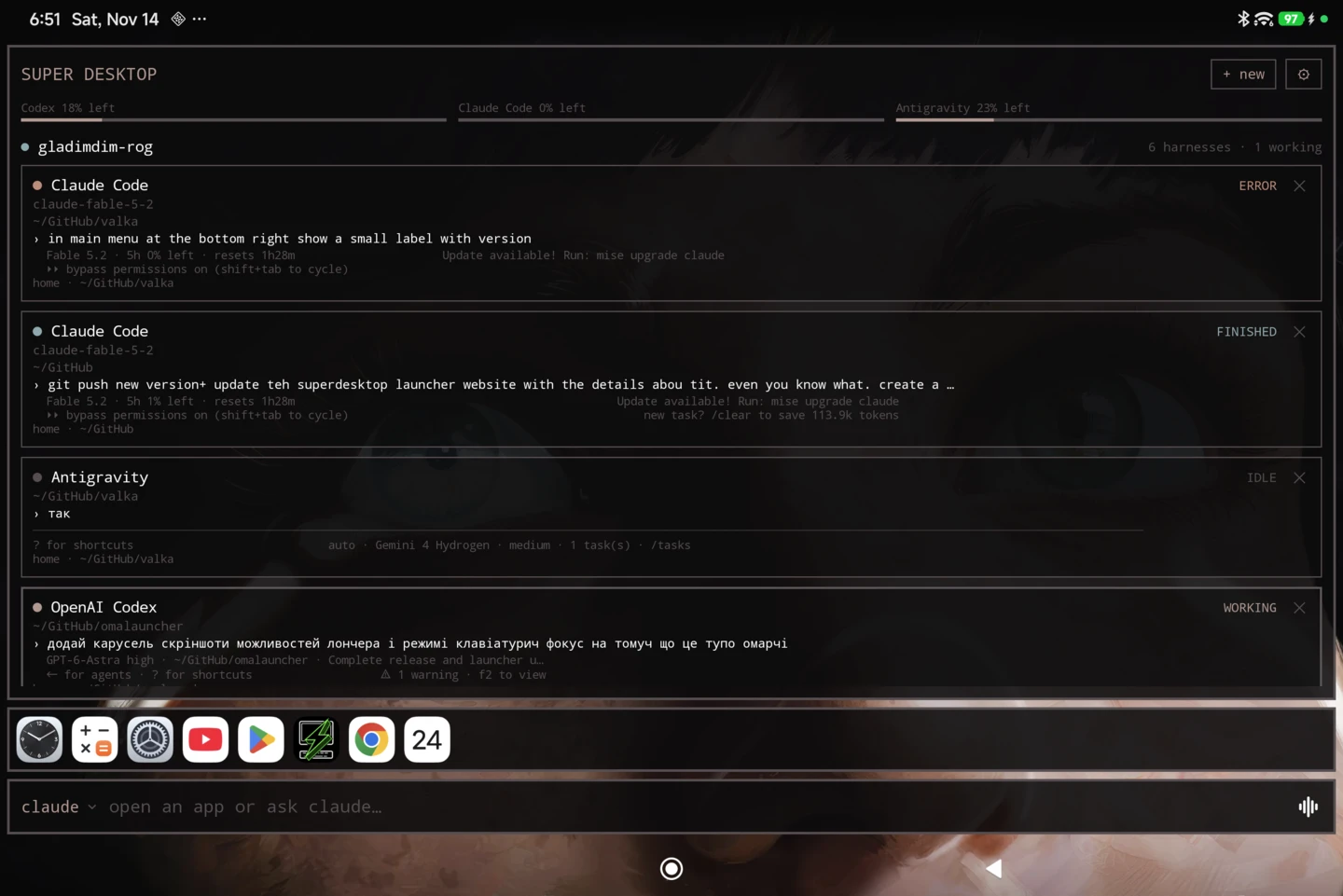
See sessions grouped by computer, with their agent, model, project folder, recent output and live status. Tap a harness to open its terminal. This capture shows six sessions on the paired PC.
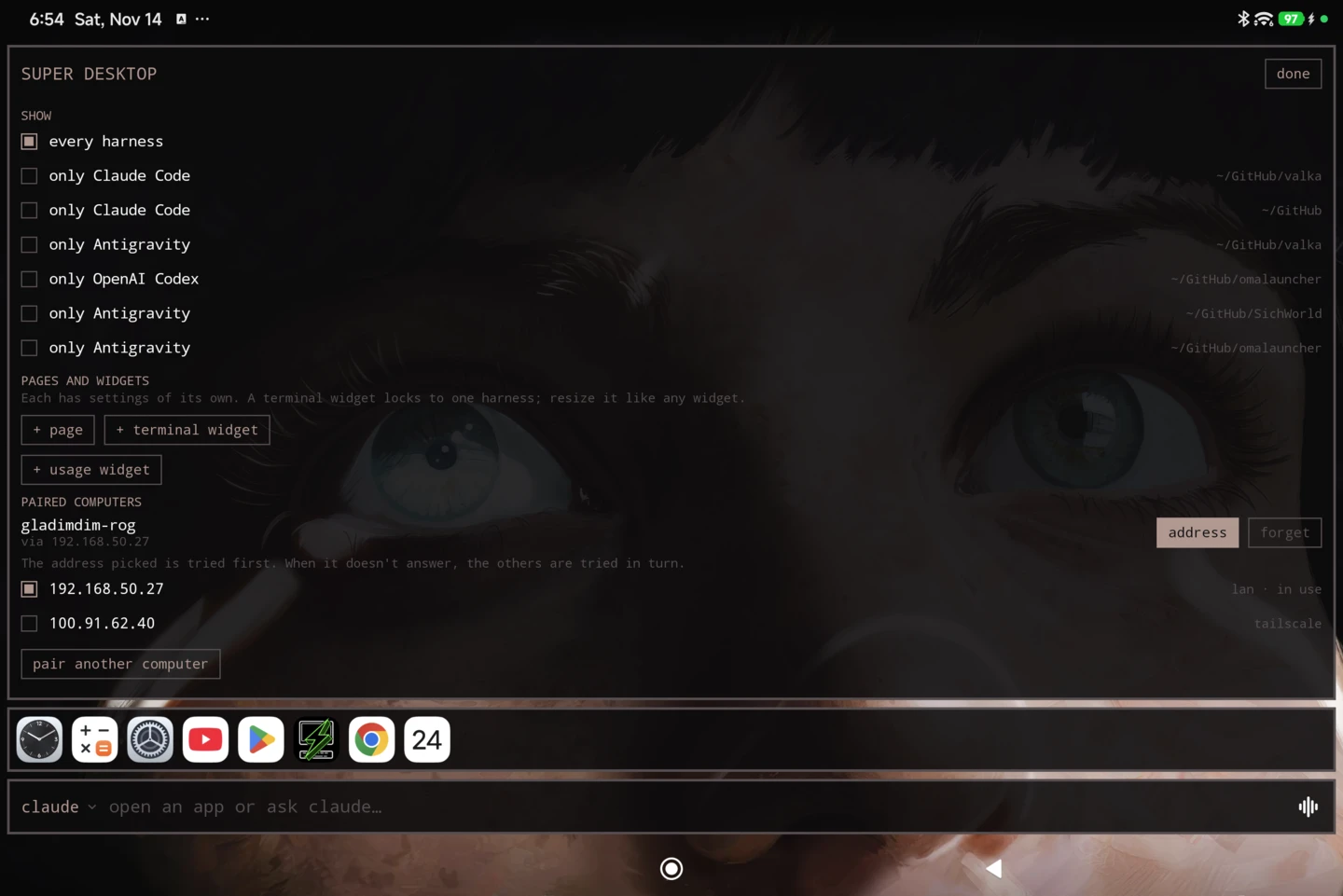
See the connected PC, the address currently in use and the available connection routes. Pair another computer from the same panel. This Pad has one paired machine in these captures.
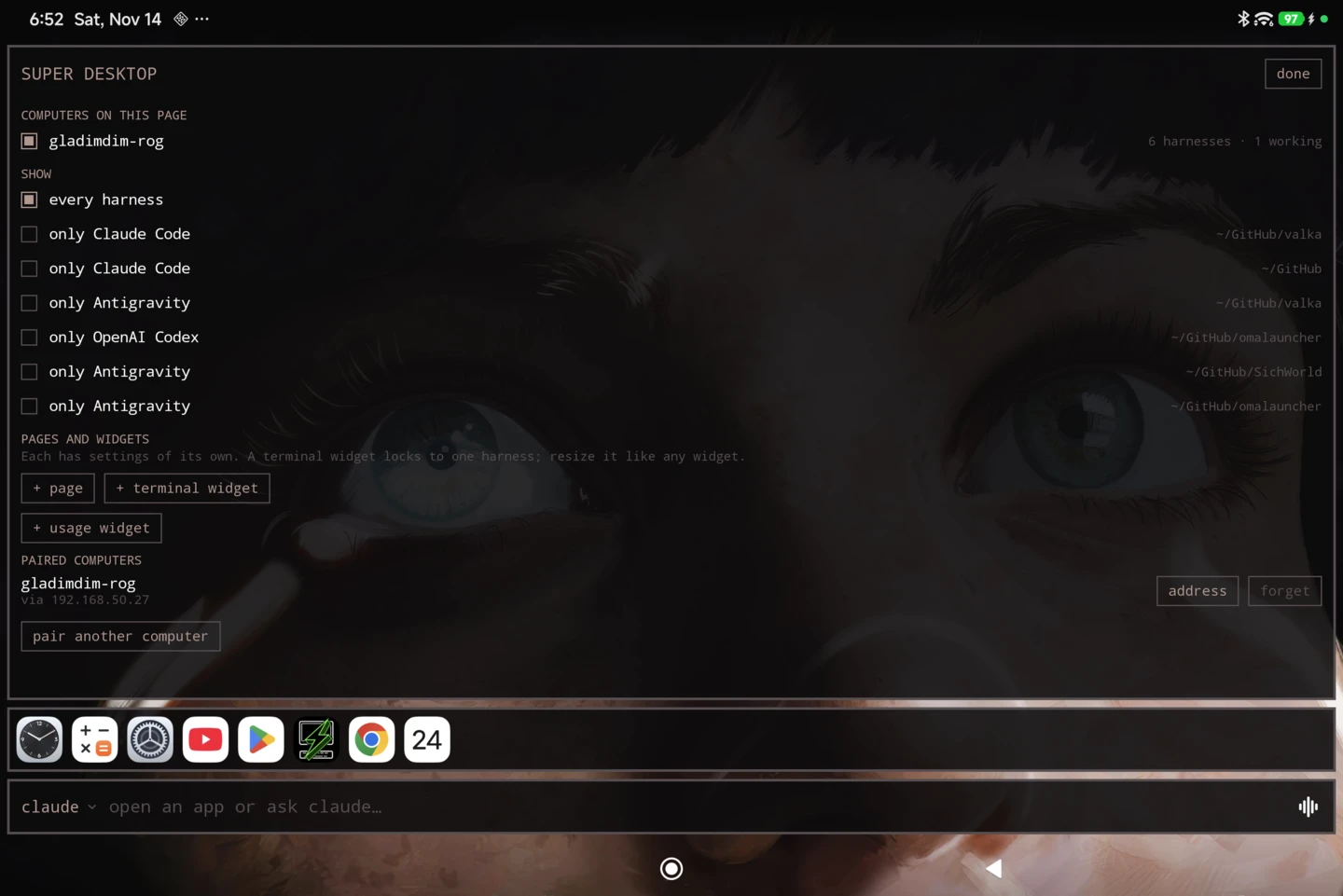
Choose the computers for this page, show every harness or pin one session. Add another page, a terminal widget or a usage widget; each keeps its own settings.
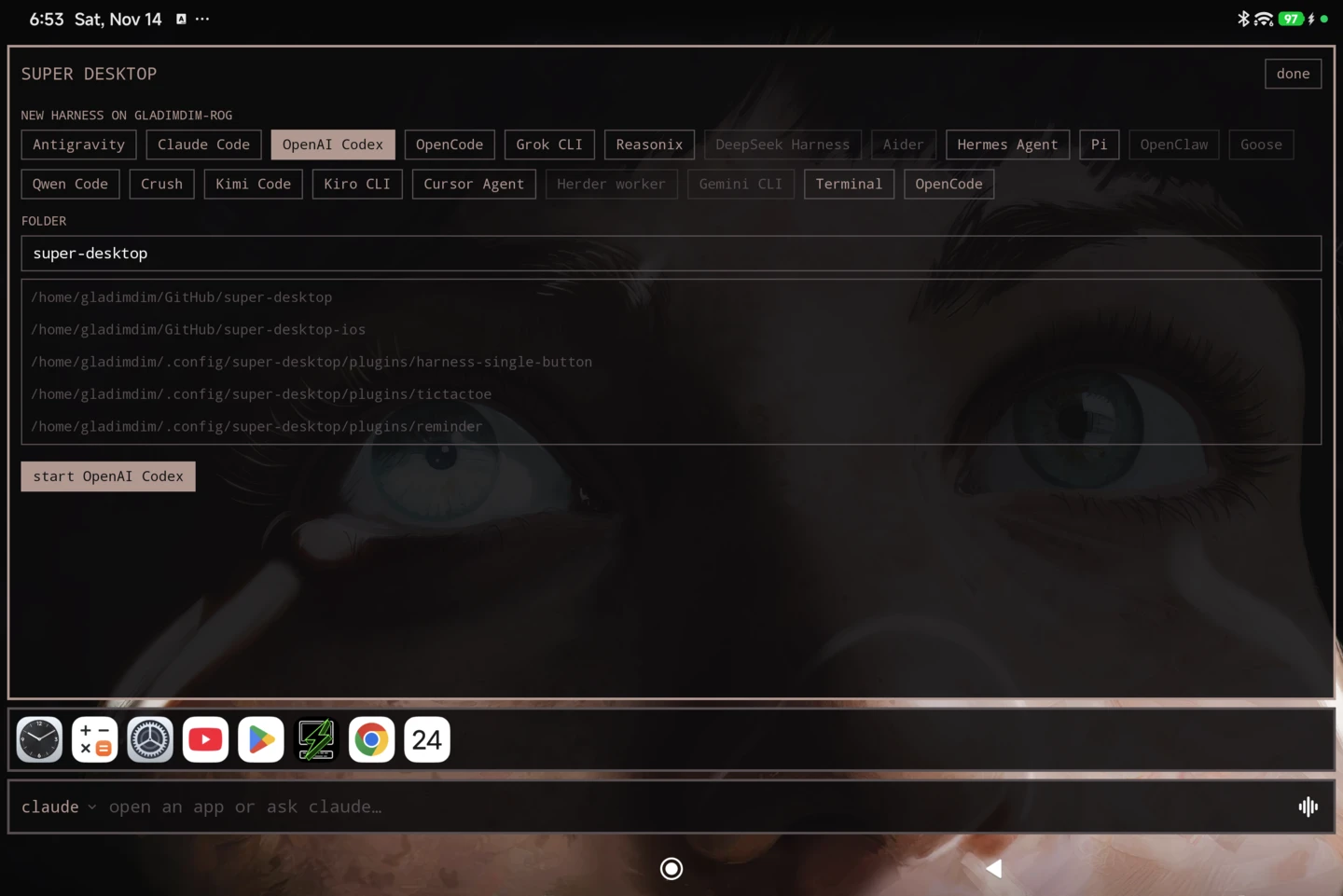
Open + new, choose an available harness and find its working folder on your PC. The Start button launches it on that computer. The screenshot shows the picker before starting a session.
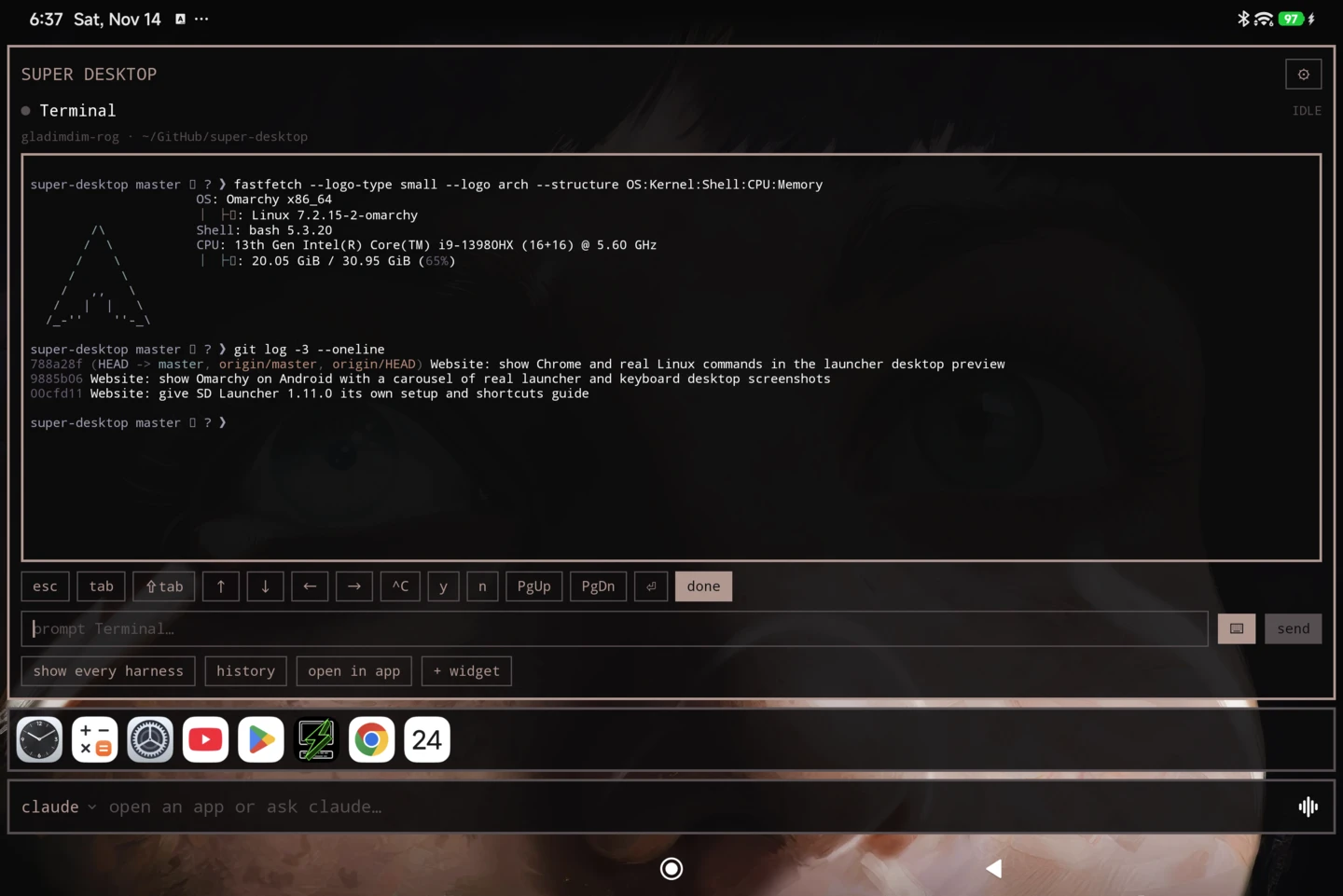
The commands here run on the paired Omarchy PC. Open an agent session the same way to read its output, send a prompt or use the live terminal.
Tap a usage card to choose its computer, provider and statistic. Follow plan limits, tokens or active sessions. Long-press a widget to move or resize it.
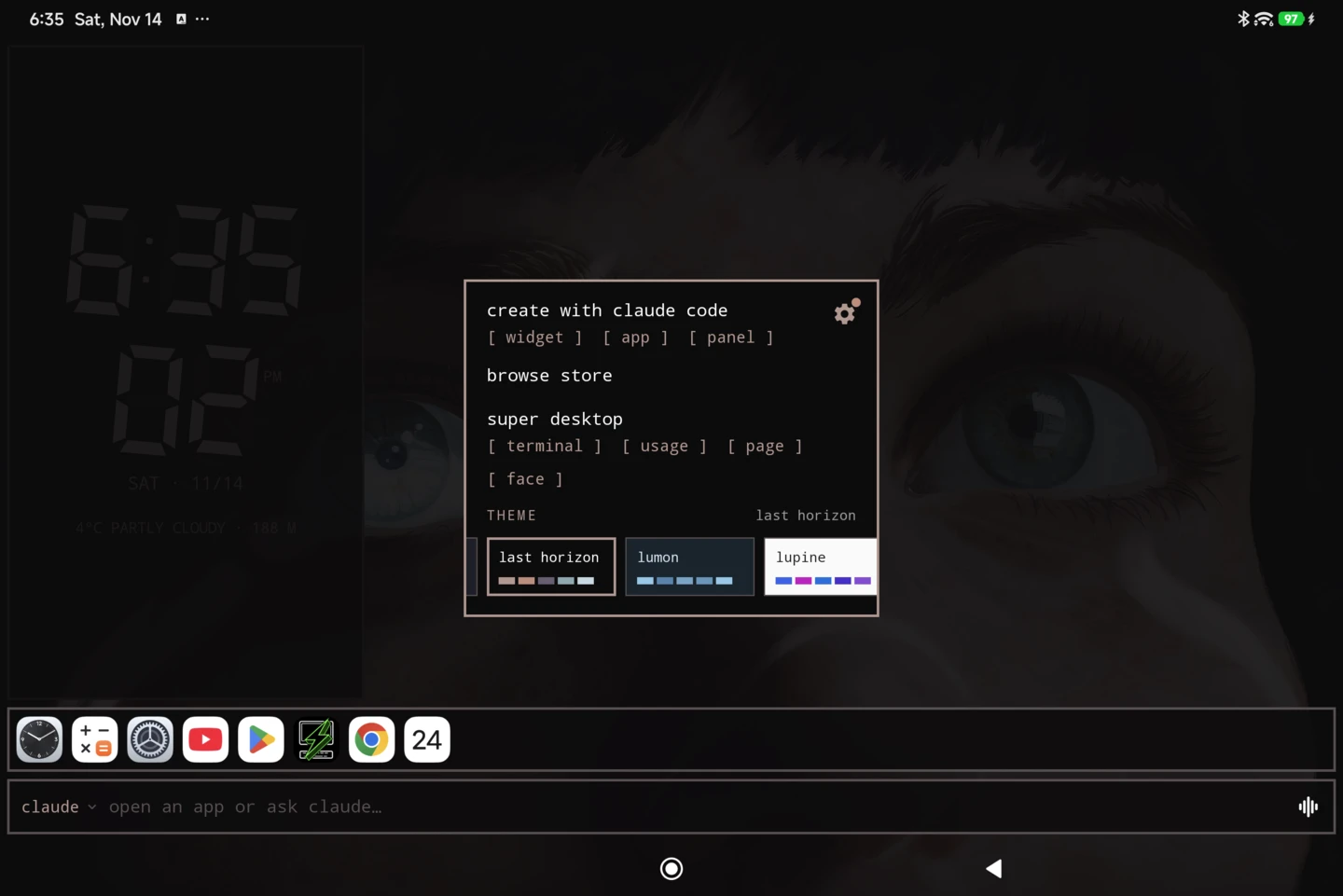
Long-press an empty area → super desktop. Choose page for your agents, terminal for one session, or usage for statistics. Pair your PC from the widget’s settings.
Real captures from the Xiaomi Pad 7 Pro. Every screen above is part of SD Launcher; the standalone SUPER DESKTOP app appears separately in the keyboard-mode carousel.
Omarchy themes and wallpapers, a searchable app list and widgets written in OWL. Edit widgets yourself or ask a coding agent.
Install Arch Linux ARM from settings for terminals, Linux apps, pacman and coding agents on the device. Linux is optional and needs a 64-bit arm64 device.
Home, Android apps and widgets work without the desktop helper. 32-bit Android TVs and boxes can use the launcher and SUPER DESKTOP features without Linux.
EXPERIMENTAL · HARDWARE KEYBOARD · ANDROID 13+
If you use Omarchy, you already know the rhythm: Super to open, focus, move and resize. Connect a hardware keyboard and set up the helper. Android apps become tiled windows above your home widgets. Linux windows join them, with up to ten workspaces and a bar for switching, notifications and system status.
Resize a split. Float a window. Put one in the scratchpad. Super+O pops a window out, centred at 80% of the available window area’s width and height, and keeps it on every workspace.
Type an app’s name, use the arrows and press Enter. App shortcuts focus an existing window when that app is already open.
Switch among ten workspaces. Add Shift to send a window there and follow it, or Shift+Alt to leave it there and stay.
Open the Linux terminal right in the desktop. Linux must be installed first; Android apps work without it.
GET SD LAUNCHER
SD Launcher 1.13.1 · SHA-256 checksum. Open it and allow installation from your browser when Android asks. It installs alongside Omalauncher and your current launcher.
Select SD Launcher as the default home app when prompted. For your PC’s agents, add a SUPER DESKTOP page and pair the PC. The phone connection guide explains pairing on the PC.
Install the new APK over SD Launcher to keep its data. Do not uninstall first. This release keeps the same SUPER DESKTOP bridge compatibility. If you use the tiling desktop, restart its helper after the update.
OPTIONAL DESKTOP SETUP
The tiling desktop stays off until you set it up. It requires Android 13 or newer, Wi-Fi (for Wireless debugging), and a hardware keyboard. Development testing has been on a Xiaomi Pad 7 Pro running HyperOS 3.
In SD Launcher, open Settings → Keyboard & desktop. The Tiling readiness card at the top shows what is still missing.
Find accessibility (tiling shortcuts) and tap turn on, then enable Accessibility → Downloaded apps → Tiling desktop shortcuts.
If it is greyed out as a restricted setting on Android 13+, tap app info in Keyboard & desktop, open the ⋮ menu in the top-right corner, tap Allow restricted settings, and then enable the service.
On HyperOS, also enable Autostart for SD Launcher so its services can return after the system stops it behind a locked screen.
Make sure Developer options are unlocked (tap Build number / OS version 7 times in Android Settings) and Wi-Fi is connected.
In Keyboard & desktop, tap pair wireless → developer options, turn on Wireless debugging, and open Pair device with pairing code. Keep the 6-digit pairing dialog open (using split-screen or a floating window), enter the 6-digit code in SD Launcher, and tap pair & start.
Xiaomi HyperOS / MIUI: if window tiling or key injection is blocked, also enable USB debugging (Security settings) in Developer options.
Prefer a PC instead? You can still start the helper over USB ADB:
adb shell 'CLASSPATH=$(pm path com.gladimdim.sdlauncher | head -1 | cut -d: -f2) setsid app_process /system/bin dev.gladimdim.tiling.helper.HelperMain com.gladimdim.sdlauncher >/dev/null 2>&1 </dev/null &'From a checkout of the launcher repository, you can run scripts/tiling-helper.sh instead.
Android turns Wireless debugging off when the device restarts. You do not need to pair again: connect to Wi-Fi, toggle Wireless debugging back on, and SD Launcher will reconnect and start the helper (or tap start helper in Keyboard & desktop).
Open an app with Super + Space. Open the shortcut list with Super + K. Super + Shift + D leaves the desktop or brings it back. Detaching the keyboard returns the windows to ordinary Android apps.
KEYBOARD REFERENCE
Super is the keyboard’s Windows or Meta key. These bindings apply while the tiling desktop is active.
| Keys | Action |
|---|---|
| Super+Space | open an app (type, arrows, Enter); "show keyboard shortcuts" is in its list |
| Super+Return | terminal |
| Super+Shift+B, F, C, E, M, … | browser, files, calendar, email, music, … (tiling.conf) |
| Super+W, Super+Q | close the window |
| Super+1…9, 0 | switch workspace |
| Super+Shift+1…0 | move the window to that workspace; with Alt, stay here |
| Super+Ctrl+Tab | the workspace before this one |
| Super+wheel, three fingers swiped sideways on the touchscreen | next / previous workspace |
| Super+S, Super+Alt+S | the scratchpad; move the window to it |
| Super+Alt+arrows | focus the window that way |
| Alt+Tab, Alt+Shift+Tab | next / previous window |
| Super+Shift+arrows | swap windows |
| Super+J | toggle the window's split |
| Super+T | float the window, or tile it again |
| Super+O | pop the window out: centred at 80% of the available window area’s width and height, on every workspace |
| Super+F, Super+Alt+F | full screen; full width with the bar |
| Super+minus / equal | narrower / wider; with Shift shorter / taller, with Alt a little, with Ctrl a lot |
| Super+left / right mouse drag | move / resize the window |
| Super+Shift+Backspace | toggle the gaps |
| Super+comma | notifications; with Shift dismiss all, with Alt the latest, with Shift+Alt their history |
| Super+K | the list of these keys |
| Super+Shift+D | leave the desktop, or come back |
Edit ~/.config/omalauncher/widgets/tiling.conf in the launcher’s Linux environment. It lives beside the widget files, which the launcher’s Files and editor can reach. Bind an app category, an app name or a package:
super + return = terminal
super + shift + b = browser
super + shift + f = files
super + shift + a = ChatGPT
Categories include browser, files, calendar, email, music, calculator, maps, photos, messages and contacts. The desktop rereads the file when it changes; its own window-management shortcuts remain reserved. Updates preserve your edits.
DEVICE SUPPORT
Report an issue with your device, Android version and the keys or gestures involved.